

This article will introduce how to install the Node.js runtime environment on your computer, enabling you to use a wide variety of Node.js applications and tools.
Windows
Testing environment is Windows 11.
Downloading Node.js
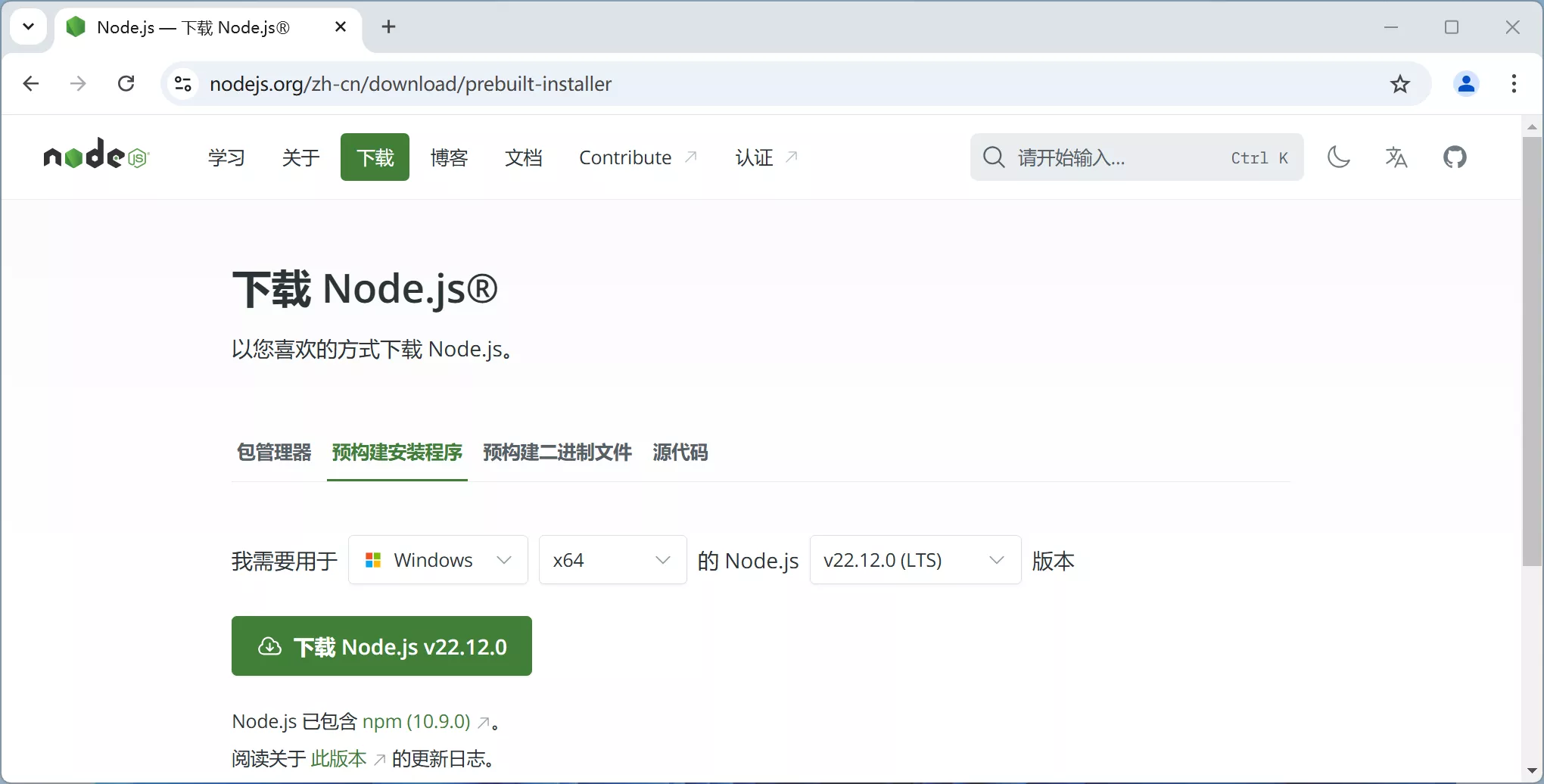
Visit the Download Page on the official Node.js website to download the installer.
Choose Prebuilt Installer, select your operating system and CPU architecture (for Windows, usually x64), and then select the Node.js version.
It is recommended to choose an even-numbered LTS (Long Term Support) version.
Installing Node.js
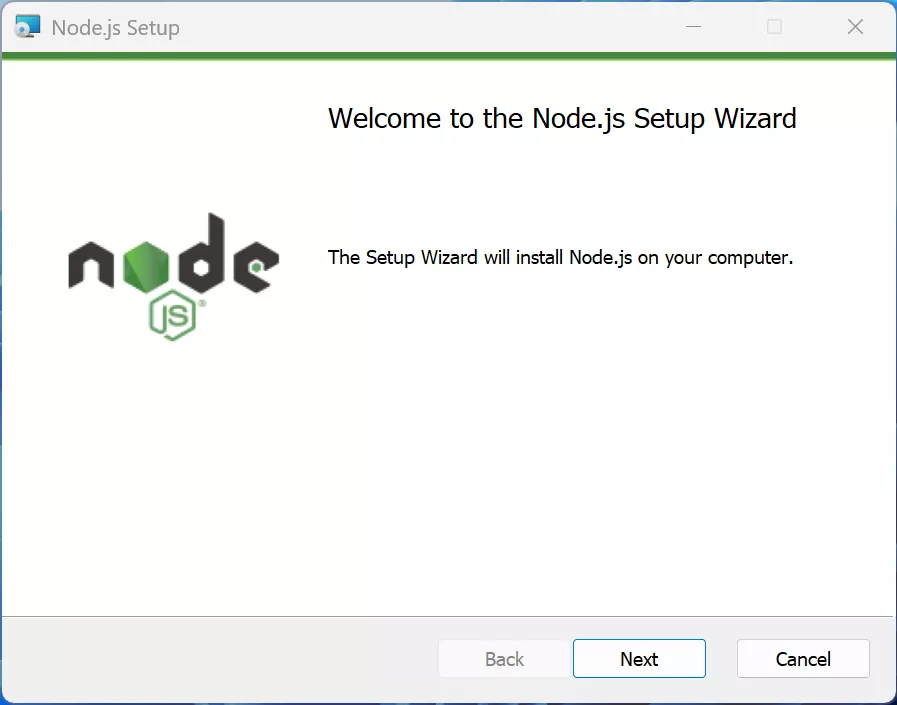
Open the installer node-v22.12.0-x64.msi. The installation process is straightforward: after accepting the license agreement, click Next all the way to complete it.
After the installation is complete, open the terminal program:
- Right-click the Start menu and select Terminal (or Windows Terminal).
- Or press
Windows + Rshortcut to open the Run window, typecmd, and press Enter to open it. - Or type
cmdin the address bar of File Explorer and press Enter (the terminal's working directory will be the current folder path in File Explorer).
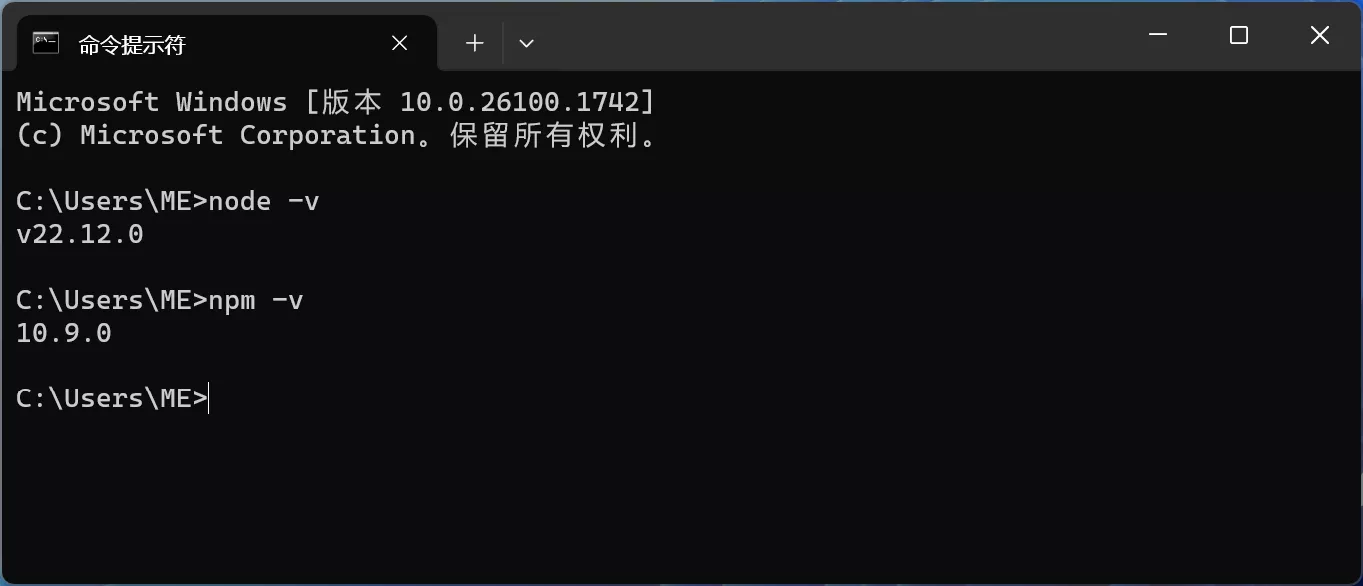
Run the following commands to test the installation:
1 | node -v |
1 | npm -v |
If the version numbers are successfully printed, the installation was successful.
macOS
Testing environment is macOS 15.1. On macOS, it is highly recommended to install Node.js using the package manager Homebrew.
Homebrew is the missing package manager for macOS and Linux, used to install things that Apple did not pre-install but you need.
Installing requires using the Terminal:
- Launchpad > Other > Terminal
- Use Launchpad or press
Command⌘ + Spaceto open Spotlight search, then search for Terminal or Terminal.app.
Installing Homebrew
For users in Mainland China or for more detailed steps, please refer to: How to Install Homebrew on macOS
First, copy the installation command:
1 | /bin/bash -c "$(curl -fsSL https://raw.githubusercontent.com/Homebrew/install/HEAD/install.sh)" |
Execute the installation command in the terminal. During installation, you will need to enter your computer password for authorization:
1 | ==> Checking for `sudo` access (which may request your password)... |
Brew will prompt the software to be installed and the folders to be created. Press Enter to continue and wait for the download and installation to complete.
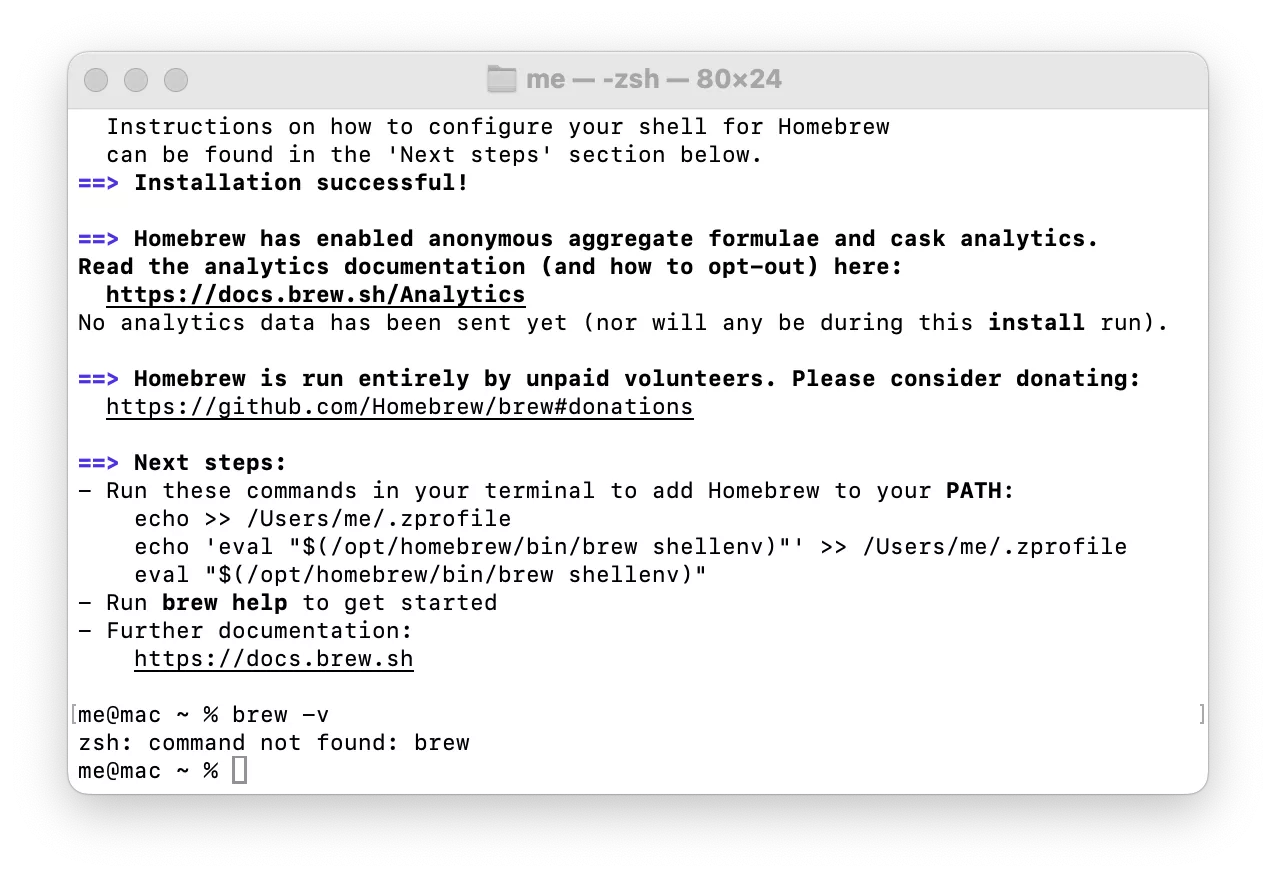
After the command finishes, copy and execute the following three commands as prompted to add Homebrew to your PATH:
1 | echo >> /Users/me/.zprofile |
If oh-my-zsh is used, execute the following commands:
1 | echo 'export PATH="/opt/homebrew/bin:$PATH"' >> ~/.zshrc |
Then you can run brew -v to test the installation, which will successfully display the Homebrew version number.
1 | >brew -v |
Installing Node.js
Open the terminal and execute:
1 | brew install node |
Test
1 | >node -v |
Common Homebrew Commands
1 | # Install a specific version |
Linux
On Linux, you can easily install Node.js using the NVM package manager.
First, Install NVM
Install NVM (Node Version Manager)
1 | curl -o- https://raw.githubusercontent.com/nvm-sh/nvm/v0.40.1/install.sh | bash |
Update PATH:
1 | # bash |
Verification:
1 | root@debian:~# nvm -v |
Installing Node.js
Download and install the Node.js 22 LTS version:
1 | nvm install 22 |
Verification:
1 | root@debian:~# node -v |
Common npm Commands
npm is the default package manager that comes with Node.js. It allows you to easily install Node.js applications. Here are some commonly used commands:
1 | # Initialize a project and create a package.json file |
Using pnpm
If you use Node.js applications frequently, installing the pnpm package manager is highly recommended. It offers better performance, faster installation speeds, and runs in strict mode by default. This ensures consistent dependency versions in your project, avoids hidden version conflicts, and maintains full compatibility with npm.
The lockfile for pnpm is pnpm-lock.yaml.
Installing pnpm
1 | npm install -g pnpm |
Common Commands
The commands for pnpm are similar to those of npm, for example:
1 | # Install dependencies based on pnpm-lock.yaml |
Other Operations
Changing Mirror Sources
Mainland China users can use the following command to switch to the Taobao mirror source to speed up downloads:
1 | npm config set registry https://registry.npm.taobao.org |
View the current mirror source:
1 | npm config get registry |


Comments