
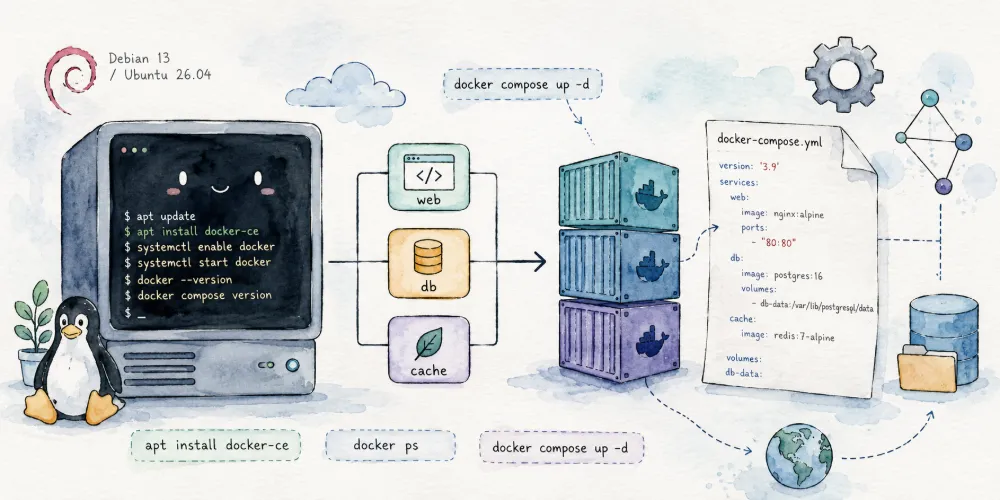
Nowadays, more and more applications can be deployed with one click using Docker. This article will introduce how to install Docker and Docker Compose on the latest Debian 13 (Trixie).
Verify environment
1 | root@debian:~# lsb_release -a |
This installation is equally applicable to Ubuntu 26.04.
Introduction to Docker
Docker is an open-source containerization platform that can package an application and its dependencies into a lightweight, portable container, allowing it to run consistently in any environment.
- Lightweight: Containers share the host machine's OS kernel, enabling fast startup times and low resource footprint.
- Portable: Containers can run consistently across development, testing, and production environments, solving the "inconsistent environments" problem.
- Isolation: Each container runs independently without affecting others.
- Rapid Deployment: Achieves fast packaging, publishing, and deployment of applications through image technology.
Introduction to Docker Compose
Docker Compose is a tool provided by Docker for defining and managing multi-container applications. Through a simple YAML file docker-compose.yml, you can define and start multiple service containers, making the deployment and management of applications much more convenient without needing to use long docker run commands.
Features:
- Multi-container Management: Start, stop, and manage multiple containers simultaneously.
- Configuration via YAML: Define services, networks, storage, etc., via
docker-compose.yml. - Simplified Commands: Manage containers using the single command
docker compose.
This article will cover installing the V2 version, which corresponds to the docker compose command.
Installing from the Official Repository
The following operations must be completed as the root user. Please use sudo -i or su root to switch to the root user for operation.
First, install some essential packages:
1 | apt update |
Then add Docker's GPG public key and apt repository:
1 | curl -sSL https://download.docker.com/linux/debian/gpg | gpg --dearmor > /usr/share/keyrings/docker-ce.gpg |
1 | curl -sSL https://download.docker.com/linux/ubuntu/gpg | gpg --dearmor > /usr/share/keyrings/docker-ce.gpg |
For machines located in mainland China, you can use the domestic mirror from Tsinghua TUNA:
1 | curl -sS https://download.docker.com/linux/debian/gpg | gpg --dearmor > /usr/share/keyrings/docker-ce.gpg |
1 | curl -sS https://download.docker.com/linux/ubuntu/gpg | gpg --dearmor > /usr/share/keyrings/docker-ce.gpg |
After updating the system, you can then install Docker CE and the Docker Compose plugin:
1 | apt update |
At this point, you can use the docker version command to check if the installation was successful:
1 | Client: Docker Engine - Community |
If you need to run Docker in non-root mode, you can add specific users to the docker group. For example, let's add the www-data user:
1 | apt install docker-ce-rootless-extras |
Docker Compose V2
Docker now comes with the Docker Compose V2 version out-of-the-box, which is the docker compose command:
1 | root@debian:~# docker compose version |
Modify Docker Configuration
The following configuration will add a custom internal IPv6 subnet, enable IPv6 functionality for containers, and limit log file sizes to prevent Docker logs from filling up the hard drive:
1 | cat > /etc/docker/daemon.json << EOF |
Then restart the Docker service:
1 | systemctl restart docker |
Guide to Common Docker Commands
Here is a quick overview of common docker commands, though using docker compose for management will be much more convenient.
1 | # Pull an image |
Guide to Using Docker Compose
docker compose needs to be executed in the working directory where the docker-compose.yml file is located. It is highly recommended to create a dedicated working directory to centrally store configuration files, for example:
1 | docker/ |
Common docker compose commands:
1 | # Pull and update images |
Still find docker compose too long to type? Execute the commands below, and you'll be able to use dc as an alternative:
Before executing, run dc once to confirm the command is not currently in use. After execution, run dc version to verify.
1 | echo 'alias dc="docker compose"' >> ~/.bashrc |
1 | echo 'alias dc="docker compose"' >> ~/.zshrc |
Effect:
1 | root@debian:~# dc |
Afterward, whenever we create a docker-compose.yml file, starting or updating the service only requires executing:
1 | dc pull |
Now head over to GitHub or Docker Hub to find some interesting projects!


Comments