
If you need to perform GitHub pull/push operations frequently, binding an SSH key to GitHub is much more convenient. Once bound, it uses public key cryptography to authenticate the user, which is more secure than the traditional username and password method.
The commands and screenshots in this article correspond to the following operating system versions. You need to install Git first:
- Windows 11 : Generally install the
64-bit Git for Windows Setup, and keep all installation options at their default settings. - macOS 15.1 : It is recommended to obtain the Git program by installing Homebrew. See How to Install Homebrew on macOS.
Opening the Terminal Program
Windows
- Right-click the Start menu and select Terminal (or Windows Terminal).
- Or press the
Windows + Rshortcut to open the Run window, typecmd, and press Enter to open it.
macOS
- Launchpad > Other > Terminal
- Use Launchpad or press
Command⌘ + Spaceto open Spotlight search, then search for Terminal or Terminal.app.
After installing Git, test it with git -v. If successful, the version number will be displayed:
1 | > git -v |
Then configure your Git personal information:
1 | git config --global user.name "yourname" |
Testing connection to github.com
Windows 10 users can use Git Bash.
The .ssh folder will be automatically created during the test, so you should run the test.
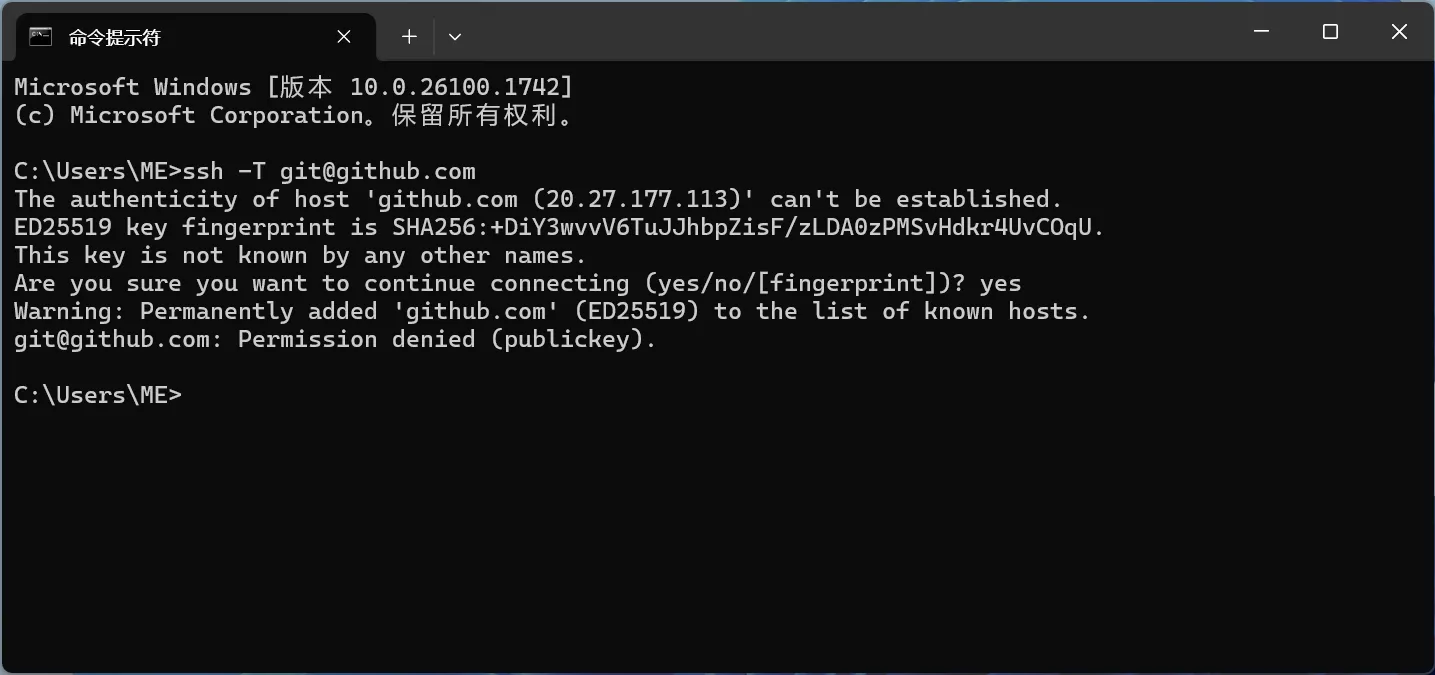
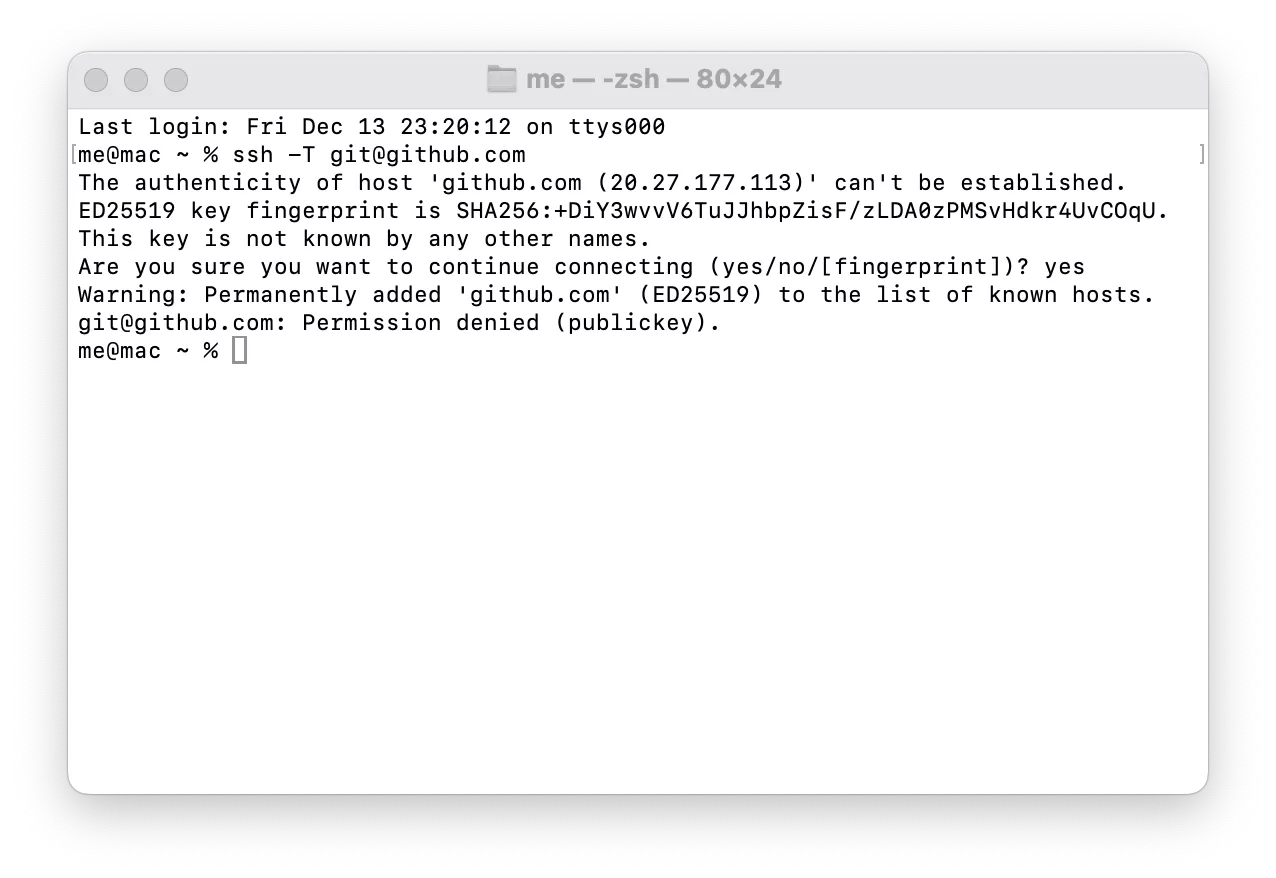
Open the terminal program and run the test command. If it is the first time running it, you need to type yes to confirm:
1 | ssh -T [email protected] |
Since we haven't added any SSH key yet, it will prompt Permission denied (publickey).
Generating an SSH Key
1 | cd .ssh |
1 | C:\Users\ME\.ssh>ssh-keygen -t rsa |
The one with the .pub extension is the public key, which can be made public. The private key is equivalent to your personal password; keep it safe and secure.
By default, Git will look for an SSH key named id_rsa.
If you specified a custom file name or generated an SSH key in another format, you can refer to the section on using SSH config later in this article.
RSA format keys are quite long. You can use ssh-keygen -t ed25519 to generate an ed25519 format key, which is shorter and more secure.
Adding the Public Key to GitHub
View the content of the public key using a command or a text editor:
- Windows: Use
type id_rsa.pub - macOS / Linux: Use
cat id_rsa.pub
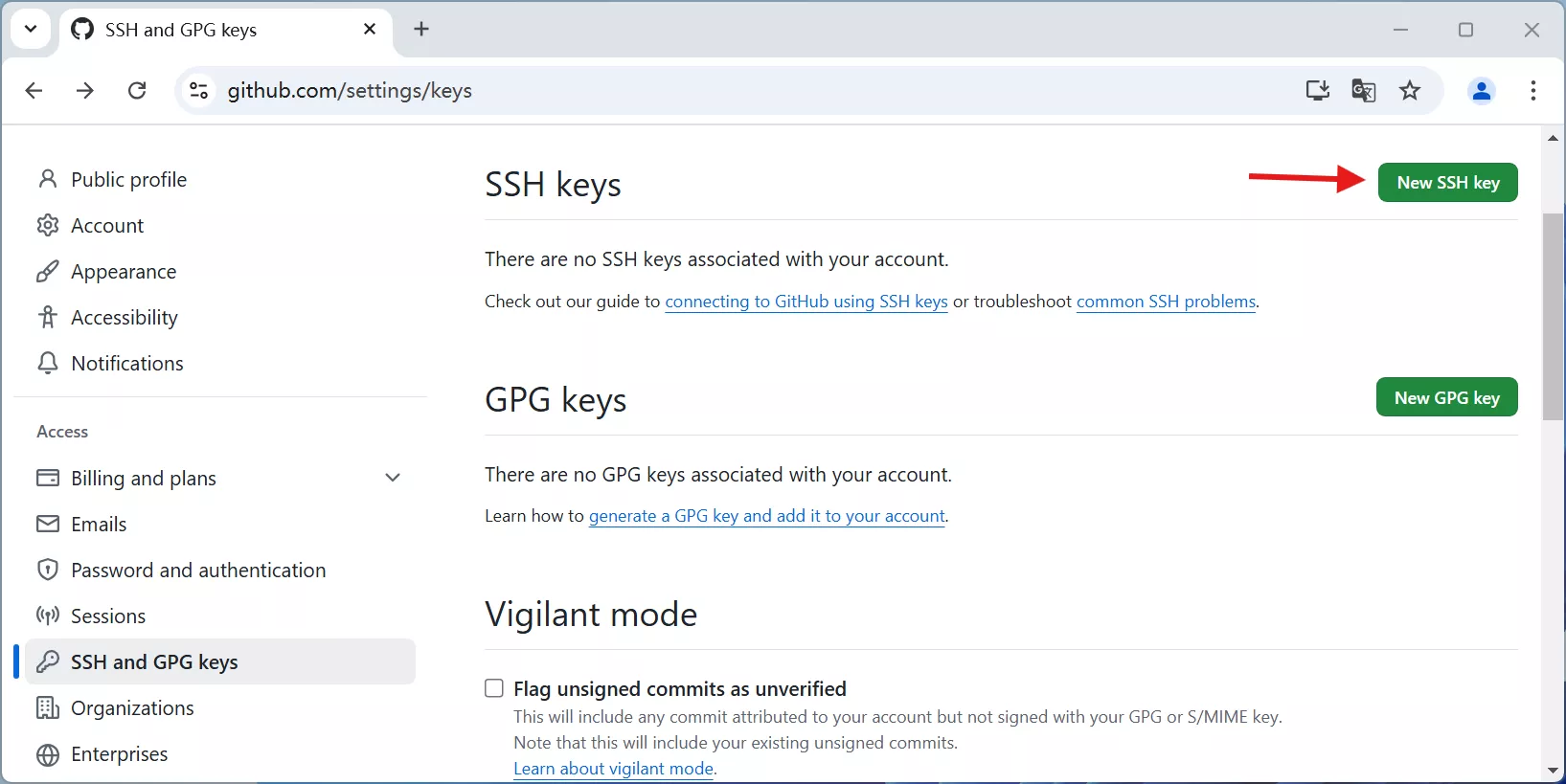
Visit GitHub - SSH Keys and click New SSH key in the top right corner.
Manual navigation path: Click your Avatar in the top right > Settings > SSH and GPG keys > New SSH key
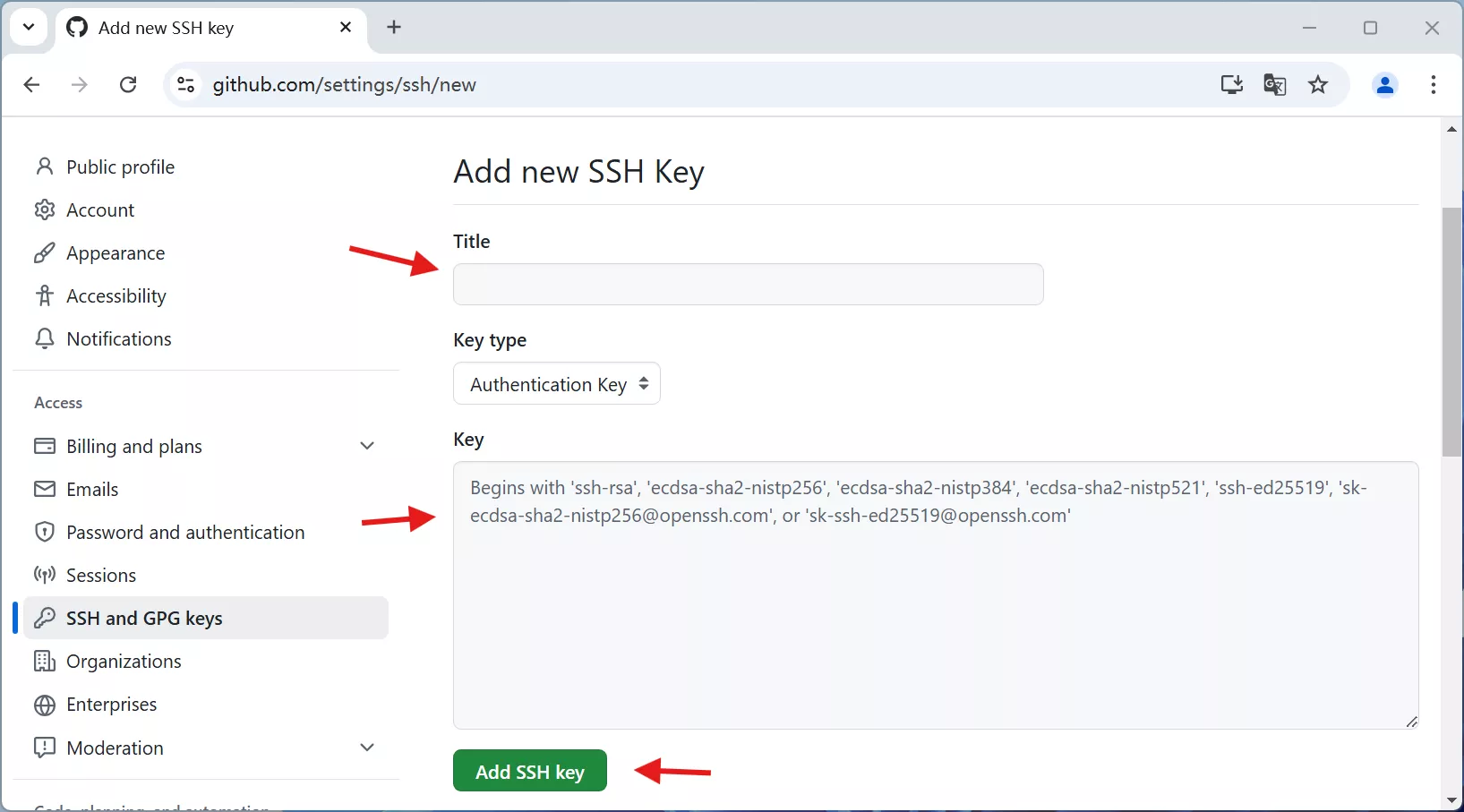
- Title: Enter a descriptive note name.
- Key type: Keep the default Authentication Key.
- Key: Paste the content of your
id_rsa.pubfile. - Click
Add SSH keyto save.
Once successfully added, it will display in the list.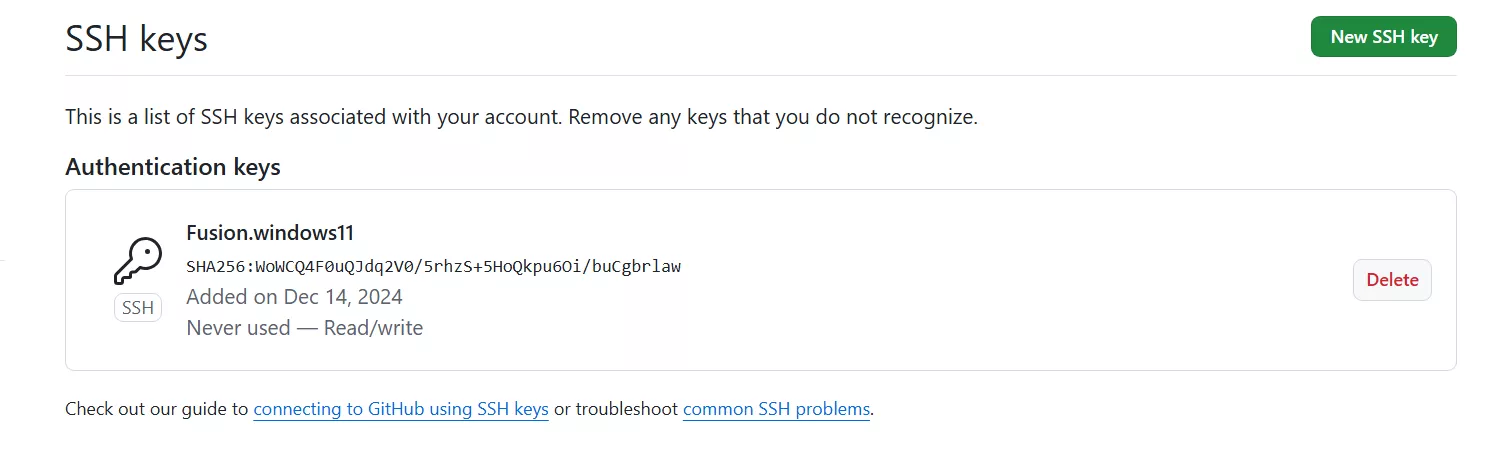
Now when we run the test command again, we will receive a successful welcome message:
1 | >ssh -T [email protected] |
Using with SSH Config
If your private key is not named id_rsa, you will still be unable to connect to GitHub successfully. You can try renaming the private key and testing again:
1 | > rename id_rsa id_mysshkey |
1 | > mv id_rsa id_mysshkey |
To fix this, we can create a file named config in the .ssh folder and fill it with the following content to tell Git where to find the key:
1 | Host github.com |
In this file, IdentityFile specifies the path to the private key, and ~ represents the user's Home directory:
- Windows: Equivalent to
C:\Users\<username>\ - macOS: Equivalent to
/Users/<username>/ - Linux: Equivalent to
/root/or/home/<username>/
Run the test again, and you should see the successful welcome message.
1 | >ssh -T [email protected] |
Now you can use Git with ease!


Comments