
If you are using Claude Code through a Claude Pro or Max subscription, running /cost will return a prompt telling you there is no need to worry about costs:
With your Claude Pro subscription, no need to monitor cost — your subscription includes Claude Code usage
However, if you are curious about your actual usage of Claude Code—for instance, to confirm if you are getting your subscription's worth, or if using the API directly would be cheaper.
You can use the ccusage project for this.
ccusage works by reading the files under your local ~/.claude/projects directory to perform analysis. It only tracks usage statistics on the local machine, so you can use it with peace of mind.
Installation
The developers of ccusage pay great attention to package size, so you can run it directly via npx or pnpm without installing it:
1 | npx ccusage@latest |
1 | pnpm dlx ccusage |
Of course, it also supports direct global installation so you can run it just by typing ccusage:
1 | # npm |
How to Use
Run ccusage directly to view your daily usage report: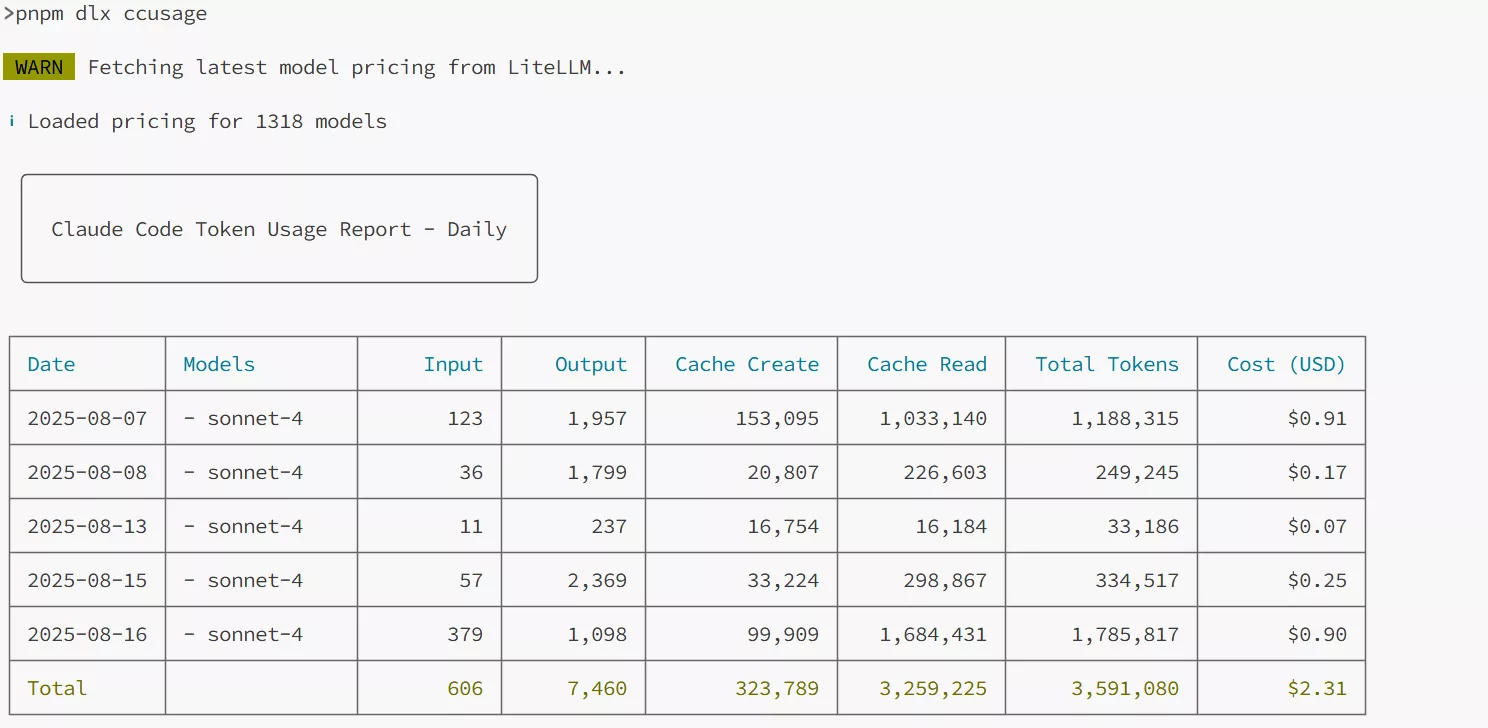
Slacking off, about to lose money (
Running ccusage -i can also display usage reports for different projects.
More commands:
1 | # 查看每日报告 |
Adding ccusage to the Claude Code Status Line
If you want to view your usage reports in real-time while using Claude Code, you can configure it directly inside Claude Code.
Open ~/.claude/settings.json in your editor and add the following code to show your usage in the status line in real-time:
1 | "statusLine": { |
~/.claude/settings.json is the global configuration for Claude Code, which is not created by default. If you have no other configurations, the complete file contents are as follows:
1 | { |
Then reopen Claude Code, and the output will look like this: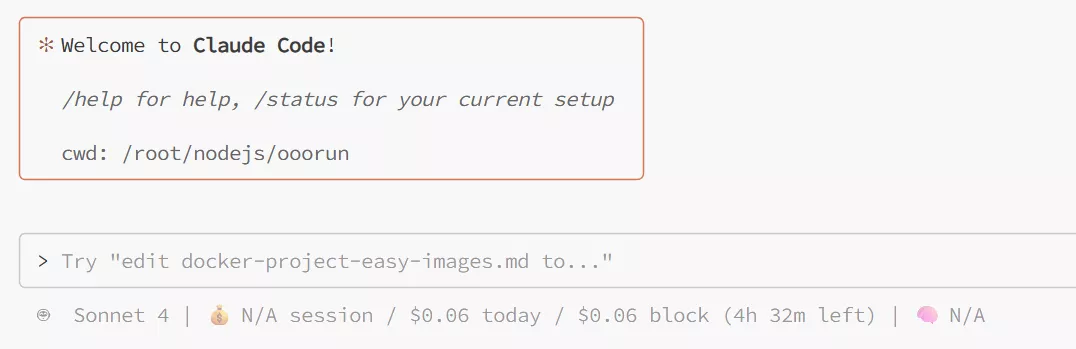
If you are also curious about your actual consumption when using Claude Code, go ahead and install it to try it out!

Comments