
Google AI Pro subscribers can receive a $10 monthly Google Cloud credit, and Google AI Ultra subscribers can receive a $100 monthly Google Cloud credit.
Claim Link
Claim Link: Google Developers - My Benefits
Tip: This benefit is not automatically distributed. You need to visit this page every month to claim that month's benefit.
If you have never used Google Developer, after visiting, you first need to click Claim Benefit to create a profile.
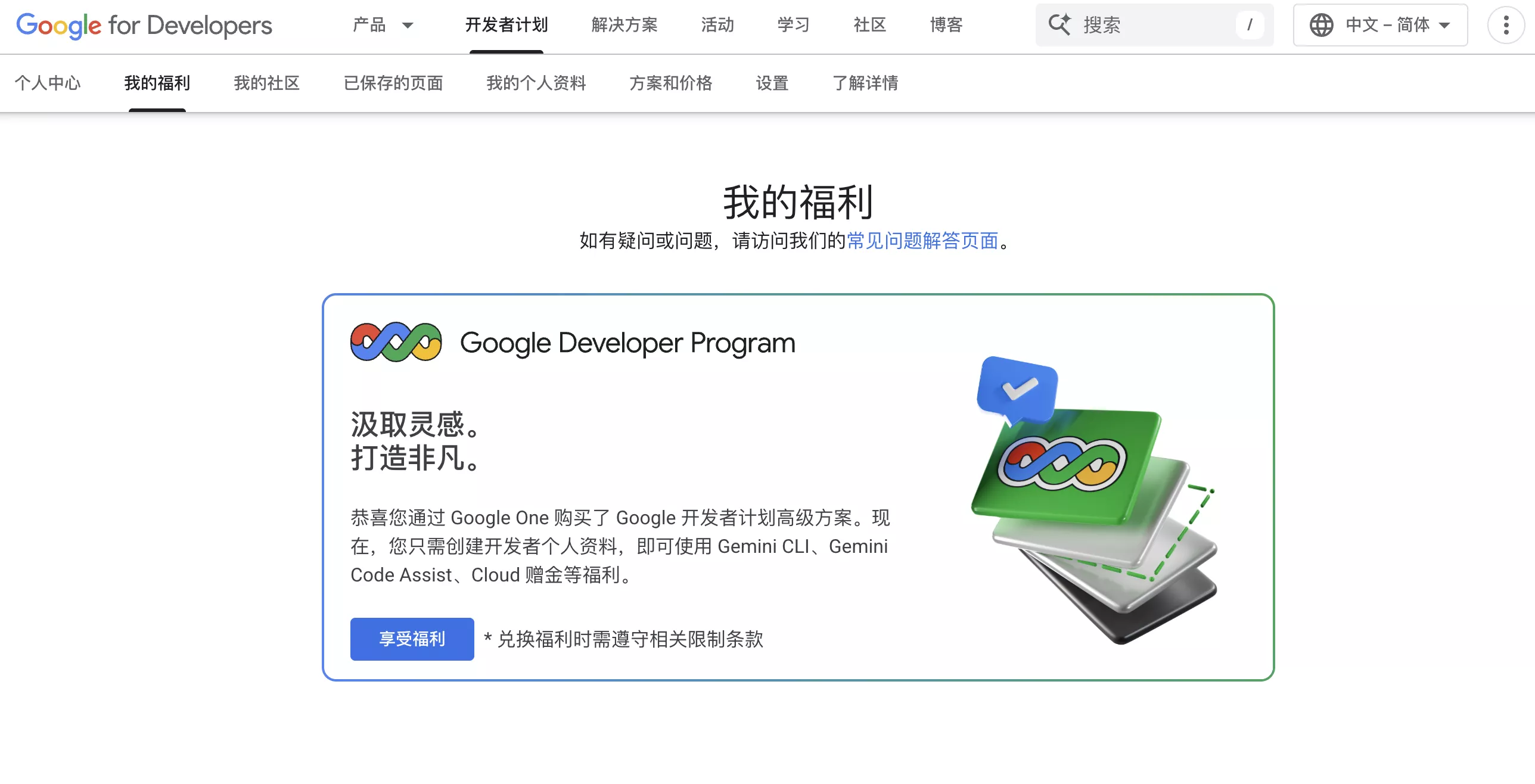
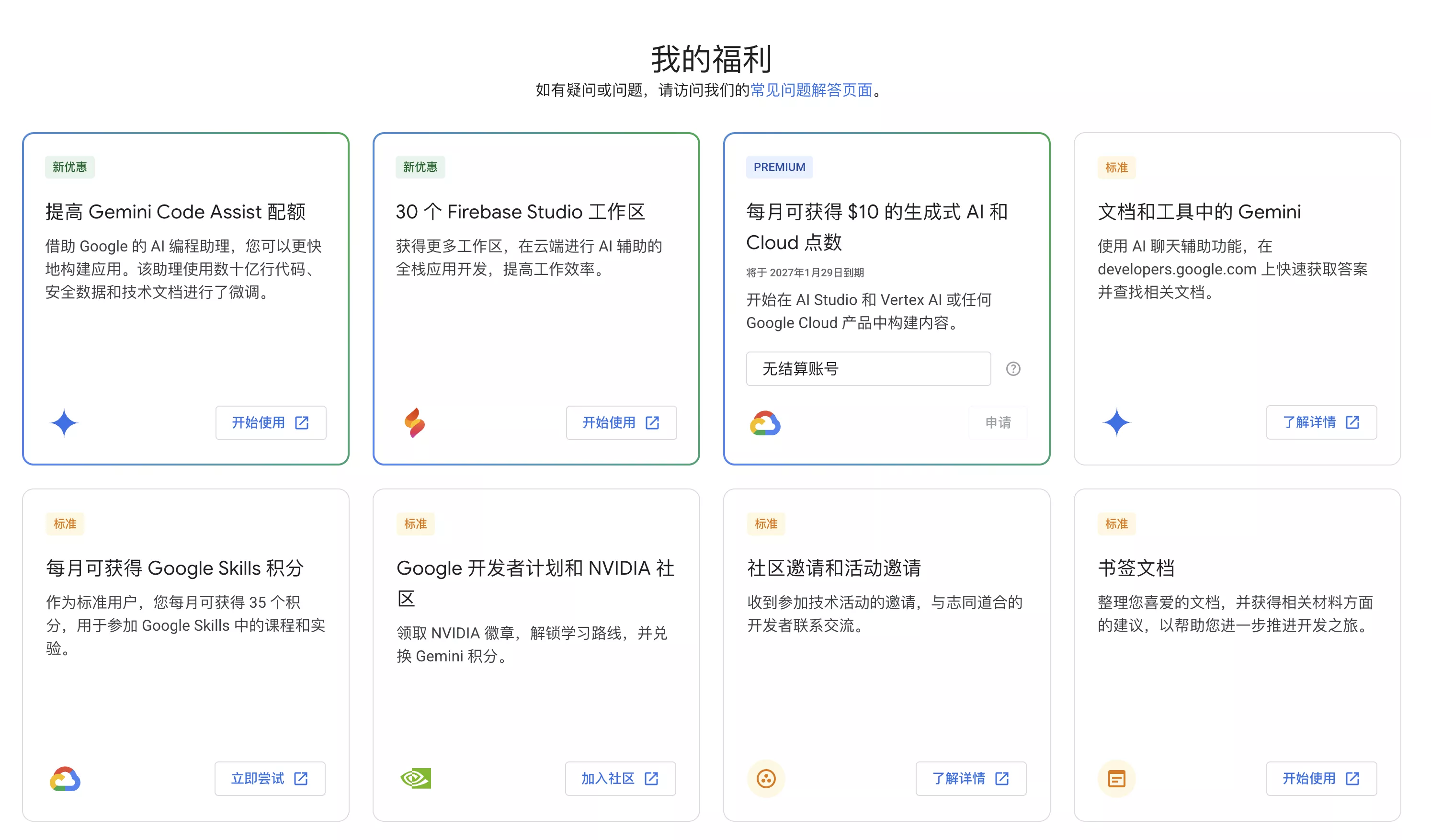
Then you will see the detailed benefit information, where AI Pro users will have Get $10 in Generative AI and Cloud credits every month included.
Set Up a Google Cloud Billing Account
If you have never used Google Cloud, you first need to visit Your Billing Account to create a billing account. You can also get a $300 Google Cloud free trial (90 days), which requires adding a credit card.
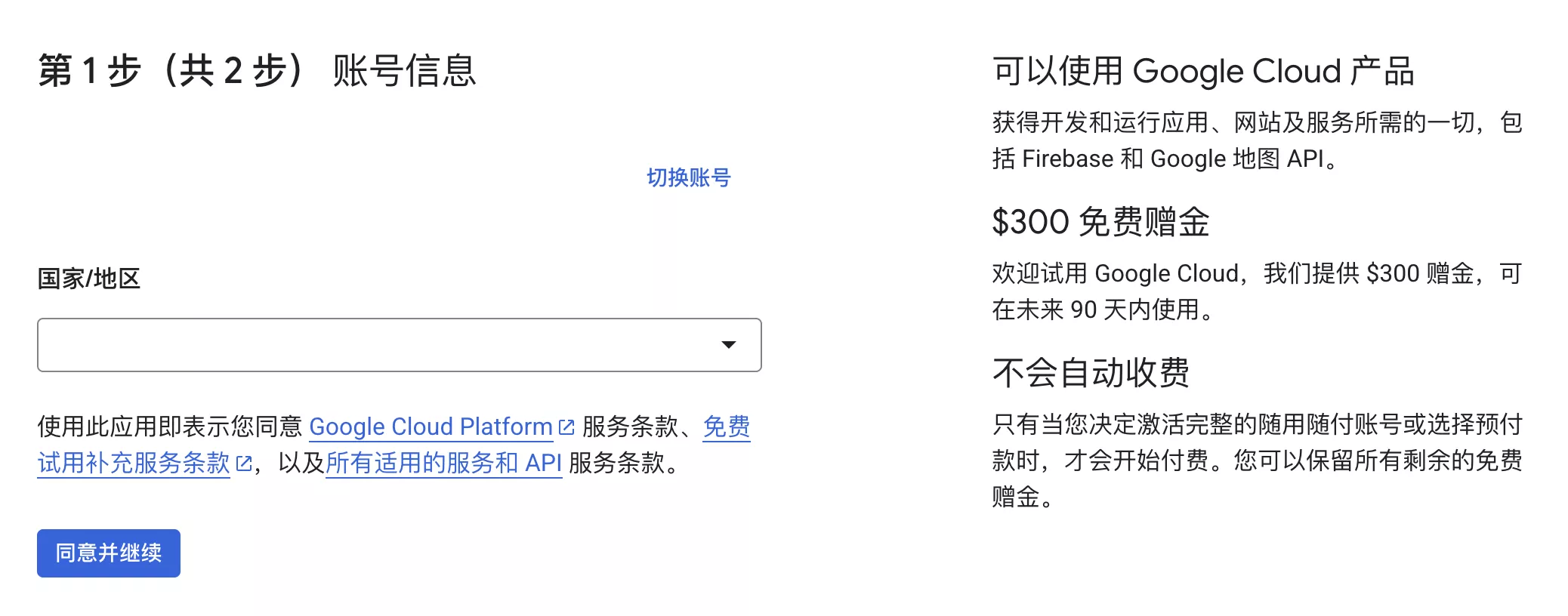
The next step is to verify payment information; you can directly use the payment details from your Google AI Pro subscription.
Google is not very strict with payment card regions. VISA and JCB credit cards issued by China Merchants Bank can pass verification.
Apply for the $10 Credit
After setting up Google Cloud, return to Google Developers - My Benefits and you will find that you can choose a billing account and apply for it.
The credit is valid for one year from the application date.
If you are using the $300 free trial credit from Google to test a VPS service, remember to cancel the related service when the 90-day trial is about to expire.
What Can You Do with It?
You can visit the Google Cloud - Credits page to view details of your current credits.
The $10 credit applies to the following services: the entire Google Cloud Platform and Google Maps Platform APIs.

You can use Nano banana Pro to generate images directly in Vertex AI Studio.
You can also obtain an API key to use in your applications.
Get the API Key
For creating a Vertex API key on GCP, please refer to Google's documentation: Google Cloud - Get a Google Cloud API Key
Update 2026.03: Google has updated its policy. Keys from AI Studio can no longer be offset by credits; the following content is now obsolete.
However, those steps are rather tedious. A simpler way is to create it via Google AI Studio and link it to your GCP billing account, which can also use the credits.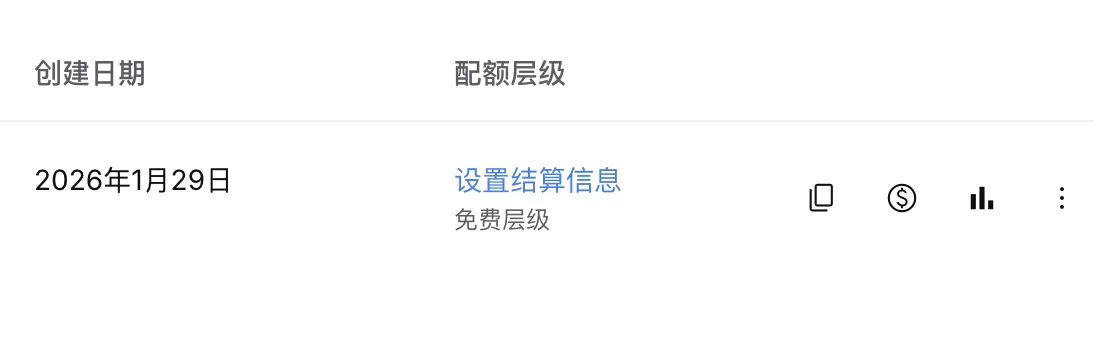
Click Set up billing on the right side of the API key.
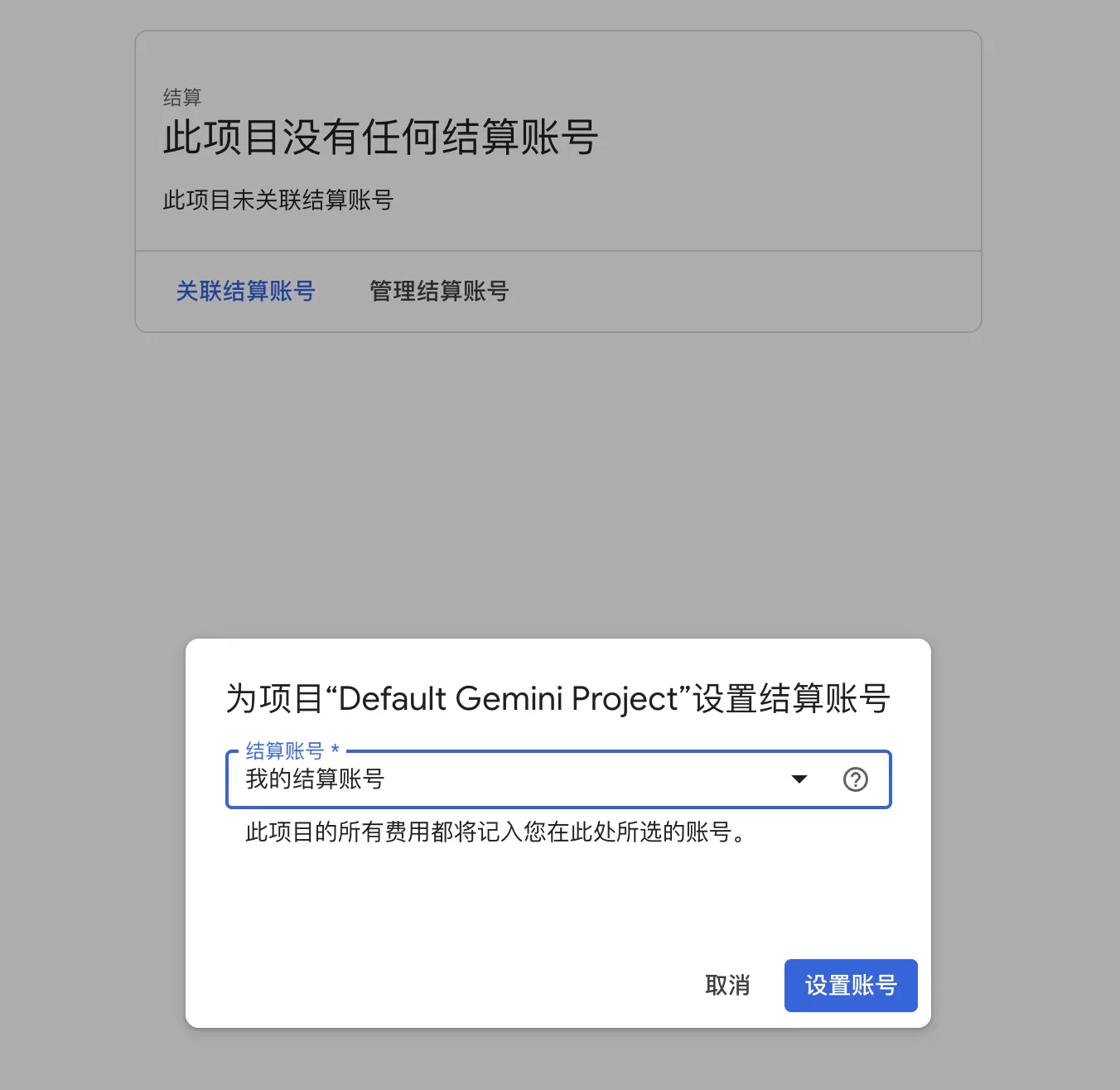
After being redirected to the new page, select your billing account. If you haven't renamed it, it defaults to My Billing Account.
Then you can return to Google AI Studio and click Enable Billing.

Remember to set up billing alerts after enabling billing to avoid exceeding the credit limit.
Be sure to secure your API keys. Specifically, do not upload them to public GitHub repositories to prevent others from using them and incurring massive bills.
You can click view usage on the right side of Google AI Studio > API Keys to check usage.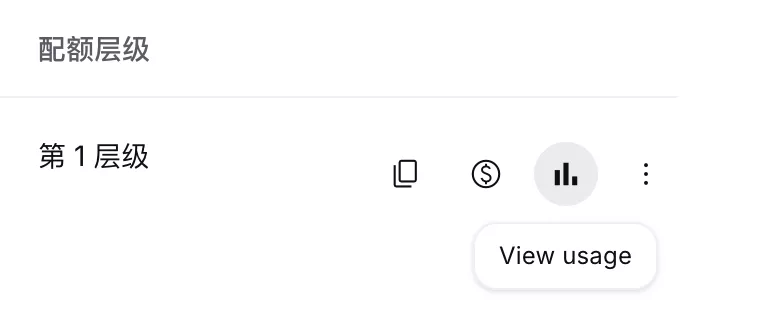
Using it in Alma
The obtained API Token is very suitable for use in Alma.
Open the Alma client, click Settings, and on the right side of the Providers page, activate Google Gemini.
Enter the API Token obtained from Google AI Studio, click Fetch to view the list of available models, activate the models you wish to use, and you can start using them in your conversations.
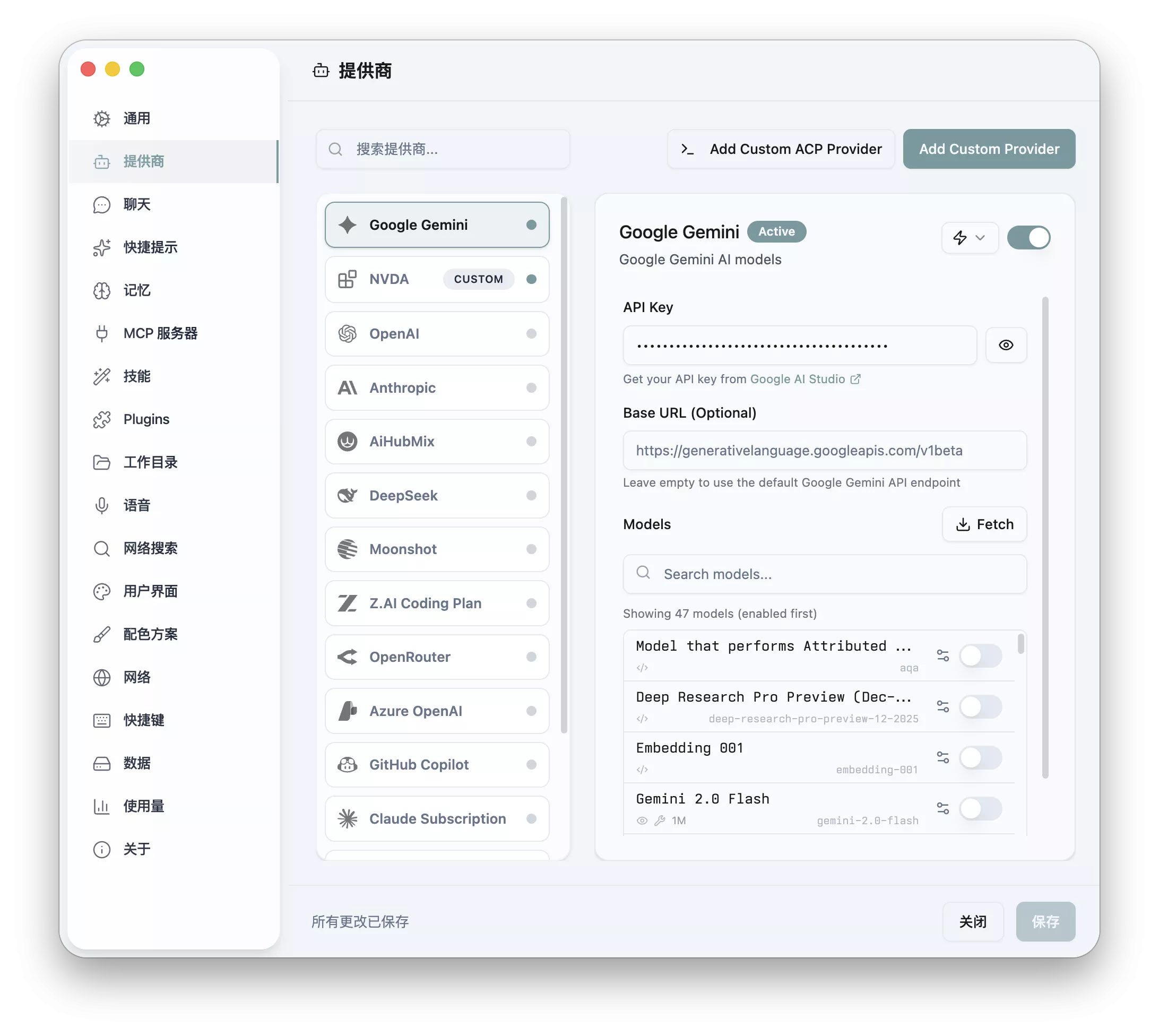
Before enabling billing, Gemini 3 will not be in the list of available models for the free tier API Token.
Comments