Notes

Displaying Claude Code Usage Quota Without Using Plugins

2026-05-30 #Claude Code

Unlike Codex, executing the /statusline command in Claude Code does not provide direct, quick adjustment options for what to display. Executing /statusline actually invokes the model to analyze and modify the ~/.claude/settings.json file.

Implementing via Claude Code

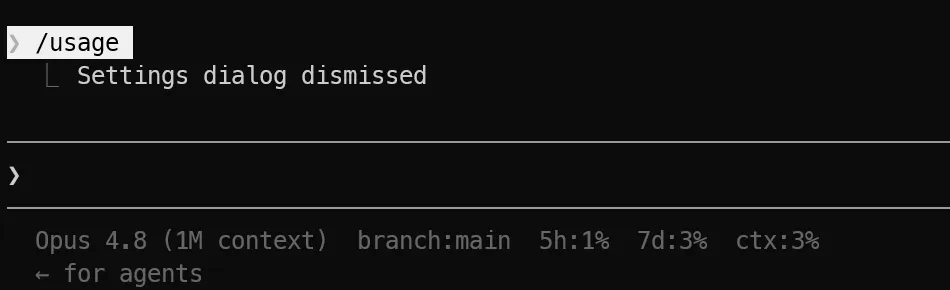
If you want Claude Code to display the 5-hour / 7-day quota and context window usage, you only need to run the following command:

1
/statusline show 5h quota, 7d quota, context usage

Claude Code will then automatically generate the corresponding script and update ~/.claude/settings.json.

Manual Implementation for macOS

Claude Code calls the model to analyze the requirements and automatically generate scripts, which consumes a standard model request quota.

Below is the code I have already created, which also includes the git branch display. You can directly copy and use it.

The script depends on jq. If it is not installed on your system, you can install it via Homebrew:

1
brew install jq

Creating statusline-command.sh

First, create the file ~/.claude/statusline-command.sh and populate it with the following content:

1
2
3
4
5
6
7
8
9
10
11
12
13
14
15
16
17
18
19
20
21
22
23
24
25
26
27
28
29
30
31
32
33
34
35
36
37
38
39
40
41
42
#!/bin/sh
input=$(cat)

# Model display name
model=$(echo "$input" | jq -r '.model.display_name // empty')
# Git branch (skip optional locks to avoid hangs)
branch=$(git -C "$(echo "$input" | jq -r '.workspace.current_dir // empty')" \
--no-optional-locks symbolic-ref --short HEAD 2>/dev/null)
# 5-hour quota
five=$(echo "$input" | jq -r '.rate_limits.five_hour.used_percentage // empty')
# 7-day quota
week=$(echo "$input" | jq -r '.rate_limits.seven_day.used_percentage // empty')
# Context used percentage
ctx=$(echo "$input" | jq -r '.context_window.used_percentage // empty')

parts=""

if [ -n "$model" ]; then
parts="${parts}${model}"
fi

if [ -n "$branch" ]; then
[ -n "$parts" ] && parts="${parts} "
parts="${parts}branch:${branch}"
fi

if [ -n "$five" ]; then
[ -n "$parts" ] && parts="${parts} "
parts="${parts}5h:$(printf '%.0f' "$five")%"
fi

if [ -n "$week" ]; then
[ -n "$parts" ] && parts="${parts} "
parts="${parts}7d:$(printf '%.0f' "$week")%"
fi

if [ -n "$ctx" ]; then
[ -n "$parts" ] && parts="${parts} "
parts="${parts}ctx:$(printf '%.0f' "$ctx")%"
fi

printf "%s" "$parts"

Editing ~/.claude/settings.json

Then edit ~/.claude/settings.json and insert the following content before the final closing brace }.
macOS:

1
2
3
4
"statusLine": {
"type": "command",
"command": "sh /Users/<User>/.claude/statusline-command.sh"
}

Make sure to replace <User> with your actual username/path.

Manual Implementation: Windows + PowerShell 7

Creating statusline-command.ps1

First, create the file ~/.claude/statusline-command.ps1 and populate it with the following content:

1
2
3
4
5
6
7
8
9
10
11
12
13
14
15
16
17
18
19
20
21
22
23
24
25
26
27
28
29
30
31
32
33
34
35
36
# statusline-command.ps1
# Read JSON input from stdin
$input_raw = [Console]::In.ReadToEnd()
$data = $input_raw | ConvertFrom-Json

$parts = [System.Collections.Generic.List[string]]::new()

# Model display name
$model = $data.model.display_name
if ($model) { $parts.Add($model) }

# Git branch (skip optional locks to avoid hangs)
$branch = git --no-optional-locks symbolic-ref --short HEAD 2>$null
if ($branch) { $parts.Add("branch:$branch") }

# 5-hour quota (Note: use $null to check if the field exists, so 0% displays correctly)
$five = $data.rate_limits.five_hour.used_percentage
if ($null -ne $five) {
$parts.Add("5h:{0:N0}%" -f [double]$five)
}

# 7-day quota
$week = $data.rate_limits.seven_day.used_percentage
if ($null -ne $week) {
$parts.Add("7d:{0:N0}%" -f [double]$week)
}

# Context used percentage
$ctx = $data.context_window.used_percentage
if ($null -ne $ctx) {
$parts.Add("ctx:{0:N0}%" -f [double]$ctx)
}

# Join parts with two spaces, without trailing newline
[Console]::Out.Write(($parts -join " "))

Editing ~/.claude/settings.json

Then edit ~/.claude/settings.json and insert the following content before the final closing brace }.
Windows :

1
2
3
4
"statusLine": {
"type": "command",
"command": "\"C:\\Program Files\\PowerShell\\7\\pwsh.exe\" -NoProfile -File \"C:\\Users\\<User>\\.claude\\statusline-command.ps1\""
}

Make sure to replace <User> with your actual username/path.

Preview Results

macOS:
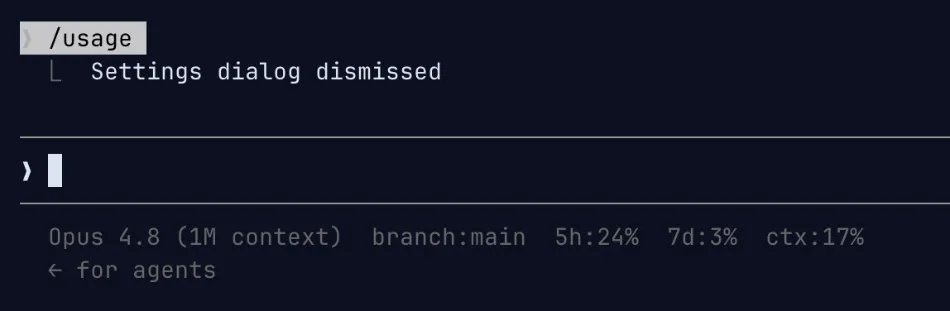
Claude Code Statusline macOS

Windows:

Claude Code Statusline Windows

Not Taking Effect in Newly Opened Windows

When opening a new window, you may notice that the quota usage information is missing; this is because a conversation interaction is required to trigger a refresh.

Adjusting Displayed Information

Simply open Claude Code and type /statusline <adjustments> to let Claude Code handle the adjustments automatically.

Implementing directly using Third-Party Packages

If you prefer not to configure it manually, there are several third-party packages that can achieve this effect. For example, ccusage, a popular package for tracking model usage, provides this feature.

https://ccusage.com/guide/statusline

In addition to displaying info on the status line, ccusage can also track historical token consumption, model usage, and quota expenditure.

Comments
Share

Comments