
As Claude's terminal programming assistant Claude Code grows increasingly popular, and Google's Gemini CLI also captures a certain market share thanks to its free quota, the industry leader OpenAI was bound to step in.
Now, following the release of GPT-5, OpenAI has finally updated Codex CLI to support direct login using ChatGPT accounts (Plus / Pro), switching the default model to GPT-5.
Quick Highlights
- Supports logging in with ChatGPT (Plus/Pro/Team): No separate API Key required.
- Default model set to
GPT-5: The latest default setting out of the box. - Supports direct installation via
npm. - Verify login and model configuration with
/status.
Installation
We highly recommend installing globally via npm:
1 | npm install -g @openai/codex |
macOS users can also install via Homebrew:
1 | brew install codex |
Haven't installed Node.js/npm yet? See: How to Install Node.js
Codex CLI requires a minimum Node version of 22
Login and Authentication
Start Codex in your terminal:
1 | codex |
When run for the first time, it will prompt you to choose an authentication method. It now supports logging in directly with ChatGPT:
1 | > 1. Sign in with ChatGPT |
After choosing "Sign in with ChatGPT", your browser will open to complete the authorization and login process:
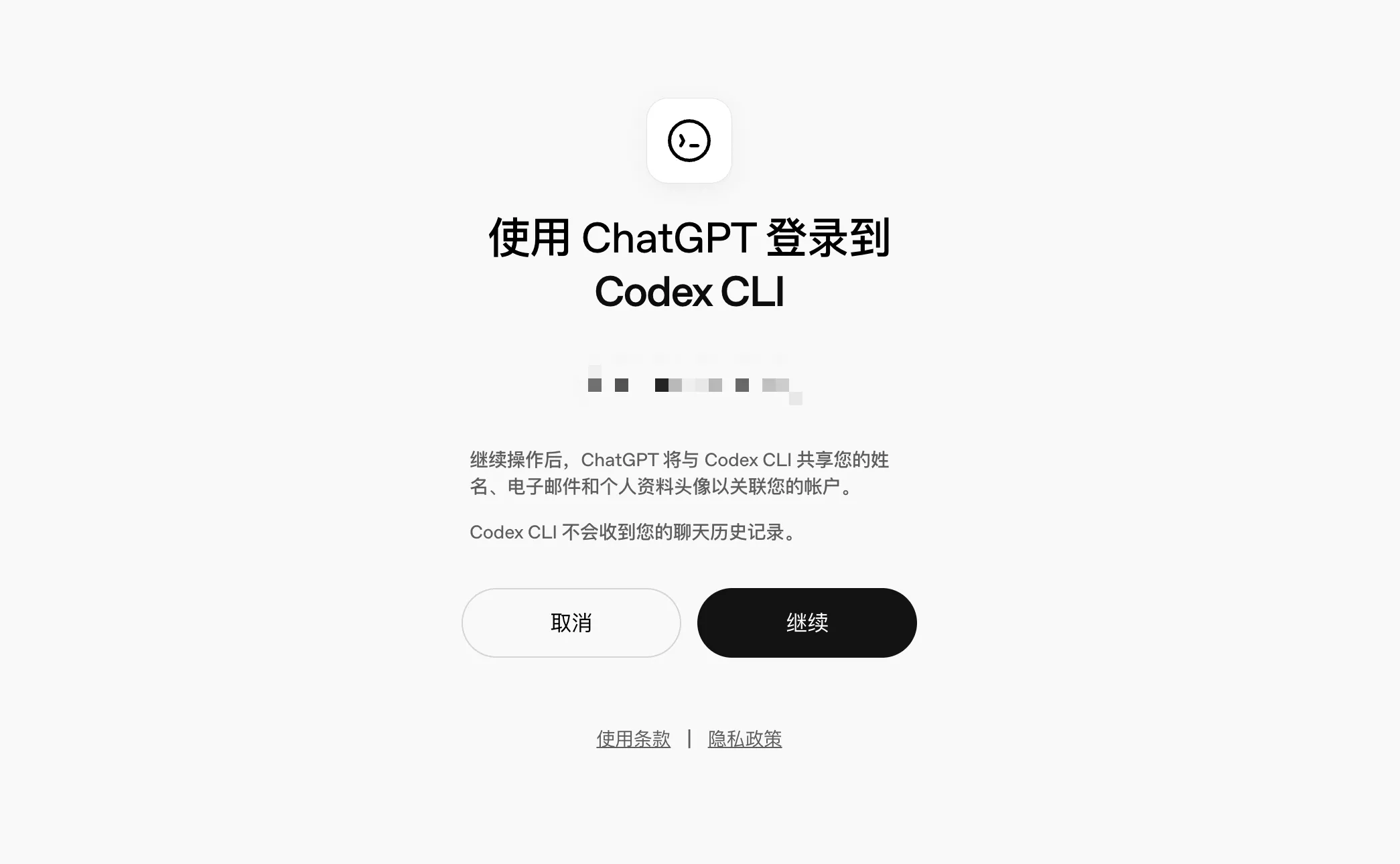
Once authorized, the terminal will display a welcome message and account source (ChatGPT).
1 | >_ Welcome to Codex, OpenAI's command-line coding agent |
Initial Configuration (Authorization Mode)
Unlike Claude Code or Gemini CLI, when entering a directory for the first time, Codex will ask whether it can edit files and run commands inside that directory "without asking for confirmation every time":
1 | > 1. Yes, allow Codex to work in this folder without asking for approval |
Recommendations:
- Personal projects with version control in place: You can select
Yesto improve efficiency. - Beginners or sensitive repositories: Selecting
Nofor step-by-step approvals is safer.
Chat Preview
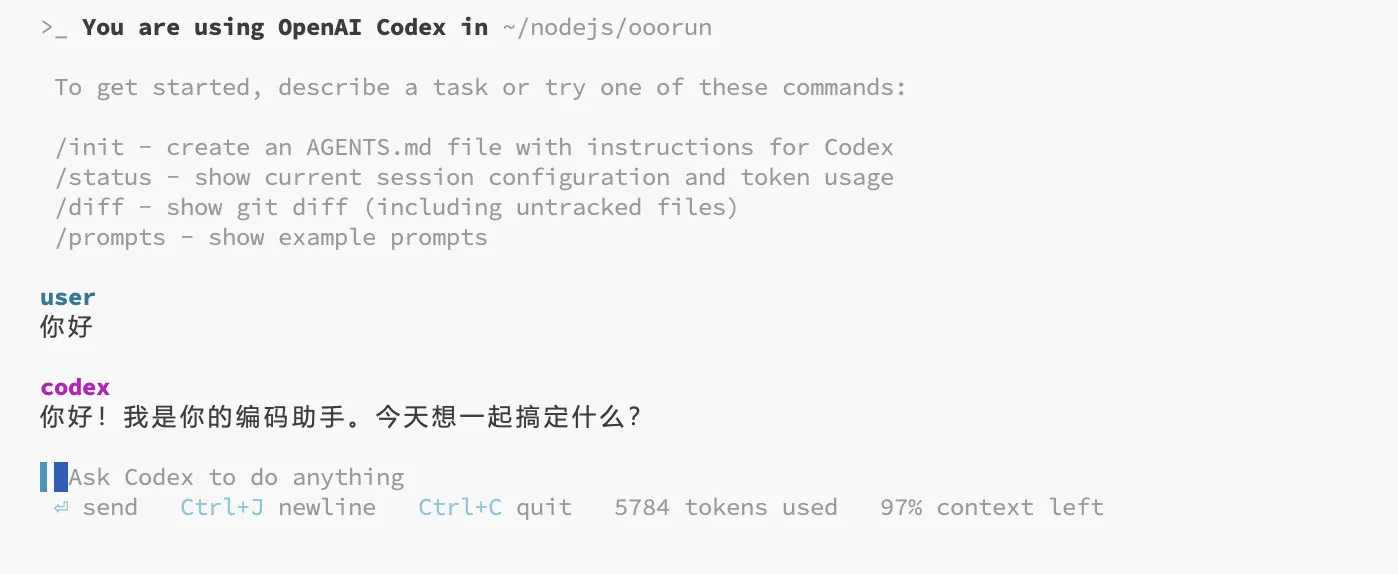
Verification and Common Commands
Check status:
1
/status
You will see information such as the authorization source (ChatGPT) and the default model
gpt-5.Example status output (irrelevant lines omitted):
1
2
3
4
5
6
7👤 Account
• Signed in with ChatGPT
• Plan: Plus
🧠 Model
• Name: gpt-5
• Provider: OpenAIInitialize project context:
1
/init
Allows Codex to retrieve the project structure and create the
AGENTS.mdfile.
If you have subscribed to ChatGPT Plus / Pro, go ahead and install it to try it out!

Comments