
Recently, OpenAI launched a major promotion offering one free seat of ChatGPT Business for 48 months. Many users might plan to use two accounts simultaneously to enjoy double the quota.
Method for Using Two ChatGPT Accounts Simultaneously (CC-Switch)
When using two accounts at the same time, we can use CC-Switch to quickly switch accounts without having to log in again.
After logging into one account, simply add a new OpenAI Official provider in the Codex application of CC-Switch. However, after enabling the new provider, running codex might trigger an account error prompt:
1 | Error: account/read failed during TUI bootstrap: account/read failed: email and plan type are required for chatgpt authentication (code -32600) |
You can directly execute the following command to authenticate the second account using device code.
1 | codex login --device-auth |
However, for security reasons, device code authentication is disabled by default. You can refer to the following method to enable it.
Enabling Device Code Authentication
The workspace admin can visit Workspace Settings > Permissions & Roles on the web, and enable the Enable Device Code Authentication for Codex CLI option on the right side.
https://chatgpt.com/admin/permissions
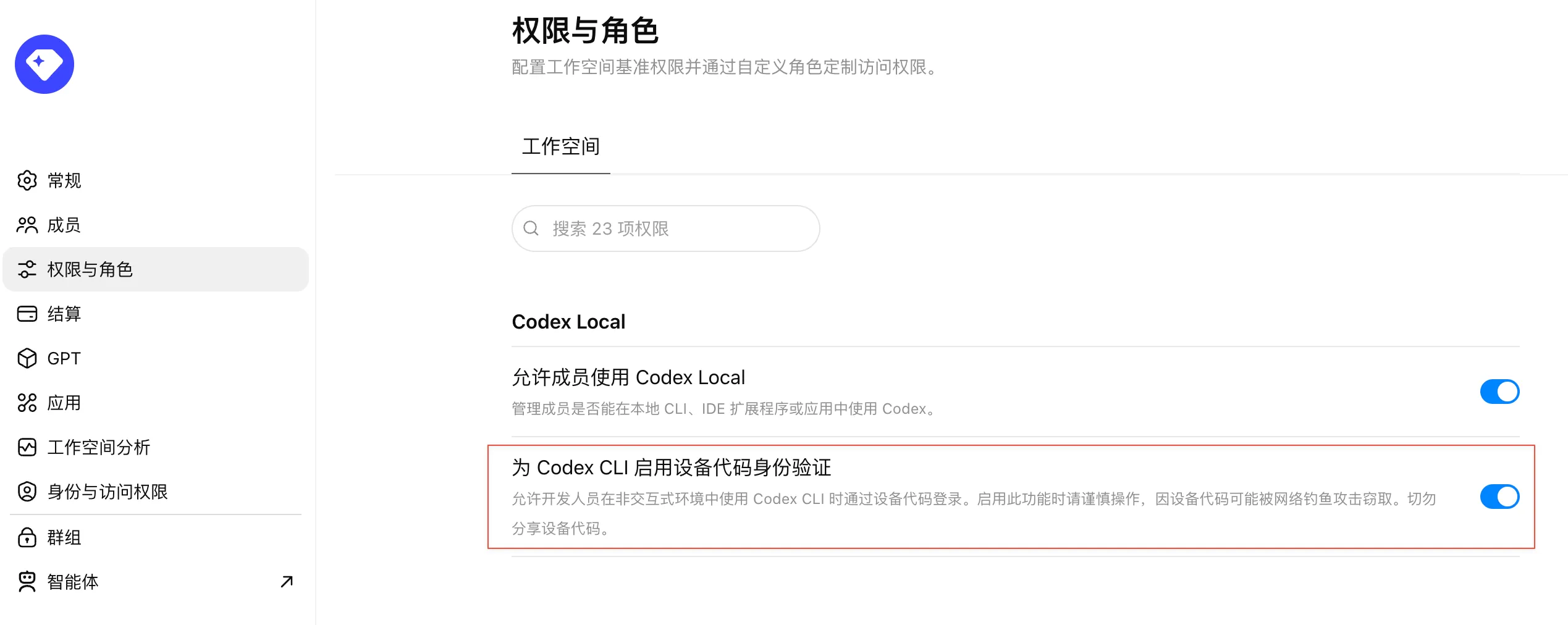
After that, you can successfully complete the authentication using the device code.

Comments