Claude Code 不像 Codex 那样执行 /statusline 命令后提供选项直接快速调整可以显示的内容,执行 /statusline 其实是调用模型去分析然后修改 ~/.claude/settings.json 文件。
通过 Claude Code 实现
如果要让 Claude Code 显示 5H \ 7 Day 额度以及上下文窗口使用情况只需要使用执行一下下面的命令:
1
| /statusline show 5h quota, 7d quota, context usage
|
Claude Code 就会自己创建对应的脚本,更新 ~/.claude/settings.json
手动实现 macOS
Claude Code 会调用模型分析需求并自动生成脚本,因此会消耗一次正常的模型请求额度。
这里提供了我已经创建了的代码,还额外增加了 git branch 显示,可以直接复制使用
脚本依赖 jq,如果系统未安装,可以通过 Homebrew 安装:
创建 statusline-command.sh 文件
首先需要创建 ~/.claude/statusline-command.sh 文件,填入下面的内容:
1
2
3
4
5
6
7
8
9
10
11
12
13
14
15
16
17
18
19
20
21
22
23
24
25
26
27
28
29
30
31
32
33
34
35
36
37
38
39
40
41
42
| #!/bin/sh
input=$(cat)
model=$(echo "$input" | jq -r '.model.display_name // empty')
branch=$(git -C "$(echo "$input" | jq -r '.workspace.current_dir // empty')" \
--no-optional-locks symbolic-ref --short HEAD 2>/dev/null)
five=$(echo "$input" | jq -r '.rate_limits.five_hour.used_percentage // empty')
week=$(echo "$input" | jq -r '.rate_limits.seven_day.used_percentage // empty')
ctx=$(echo "$input" | jq -r '.context_window.used_percentage // empty')
parts=""
if [ -n "$model" ]; then
parts="${parts}${model}"
fi
if [ -n "$branch" ]; then
[ -n "$parts" ] && parts="${parts} "
parts="${parts}branch:${branch}"
fi
if [ -n "$five" ]; then
[ -n "$parts" ] && parts="${parts} "
parts="${parts}5h:$(printf '%.0f' "$five")%"
fi
if [ -n "$week" ]; then
[ -n "$parts" ] && parts="${parts} "
parts="${parts}7d:$(printf '%.0f' "$week")%"
fi
if [ -n "$ctx" ]; then
[ -n "$parts" ] && parts="${parts} "
parts="${parts}ctx:$(printf '%.0f' "$ctx")%"
fi
printf "%s" "$parts"
|
编辑 ~/.claude/settings.json
然后编辑 ~/.claude/settings.json,在最后 } 前加入下面的内容
macOS:
1
2
3
4
| "statusLine": {
"type": "command",
"command": "sh /Users/<User>/.claude/statusline-command.sh"
}
|
需要把 <User> 替换为实际的路径
手动实现: Windows + Powershell7
创建 statusline-command.ps1
首先需要创建 ~/.claude/statusline-command.ps1 文件,填入下面的内容:
1
2
3
4
5
6
7
8
9
10
11
12
13
14
15
16
17
18
19
20
21
22
23
24
25
26
27
28
29
30
31
32
33
34
35
36
|
$input_raw = [Console]::In.ReadToEnd()
$data = $input_raw | ConvertFrom-Json
$parts = [System.Collections.Generic.List[string]]::new()
$model = $data.model.display_name
if ($model) { $parts.Add($model) }
$branch = git --no-optional-locks symbolic-ref --short HEAD 2>$null
if ($branch) { $parts.Add("branch:$branch") }
$five = $data.rate_limits.five_hour.used_percentage
if ($null -ne $five) {
$parts.Add("5h:{0:N0}%" -f [double]$five)
}
$week = $data.rate_limits.seven_day.used_percentage
if ($null -ne $week) {
$parts.Add("7d:{0:N0}%" -f [double]$week)
}
$ctx = $data.context_window.used_percentage
if ($null -ne $ctx) {
$parts.Add("ctx:{0:N0}%" -f [double]$ctx)
}
[Console]::Out.Write(($parts -join " "))
|
编辑 ~/.claude/settings.json
然后编辑 ~/.claude/settings.json,在最后 } 前加入下面的内容
Windows :
1
2
3
4
| "statusLine": {
"type": "command",
"command": "\"C:\\Program Files\\PowerShell\\7\\pwsh.exe\" -NoProfile -File \"C:\\Users\\<User>\\.claude\\statusline-command.ps1\""
}
|
需要把 <User> 替换为实际的路径
预览效果
macOS:
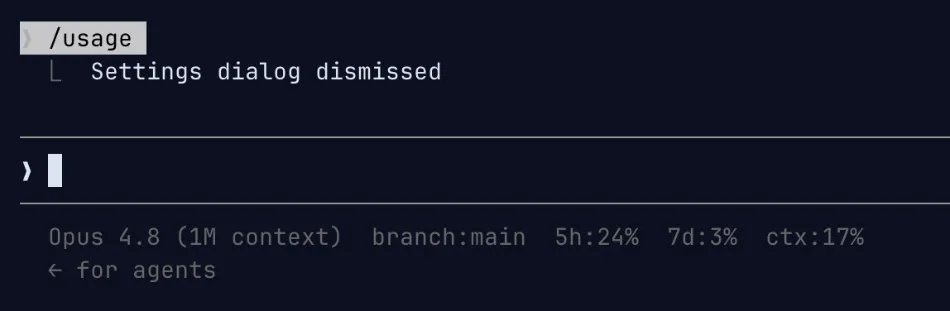
Windows:
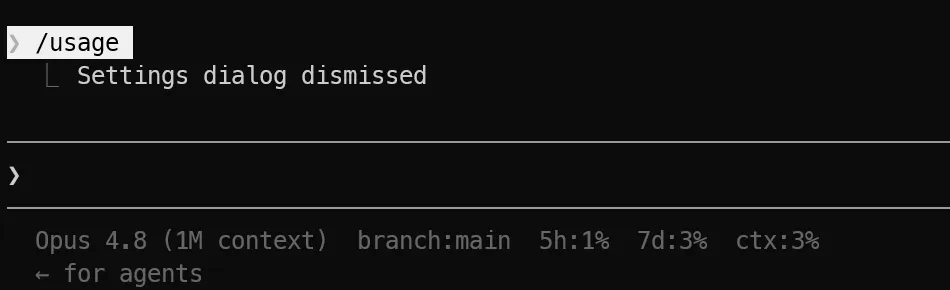
新打开的窗口不生效
打开新窗口时,会发现没有额度使用信息,这是因为需要对话一下才会刷新。
调整显示信息
只需要打开 Claude Code 后,输入 /statusline 调整内容 即可让 Claude Code 自己进行调整了。
直接使用第三方包实现
如果不希望手动设置,有很多第三方包可以实现这个效果,比如很流行的查看模型使用情况的 ccusage 就提供这个功能。
https://ccusage.com/guide/statusline
ccusage 除了提供状态栏显示外,还能统计历史 Token、模型使用量以及额度消耗情况。




评论